Showing posts with label free download blogger template. Show all posts

Friday, January 9, 2015

Most Advanced SEO Optimized Responsive Blogger Template

4 Comments

Most Advanced SEO Optimized Responsive Blogger Template

I am blogger I use SEO Optimized custom designed Responsive Blogger Template. Many People requested me to share this template, So here it is. I am not encrypting anything in this template. You are free to edit any element in the template.

Most Advanced SEO Optimized  Responsive Blogger Template


Most advanced Blogger Template

This template is completely different from all other blogger templates. It might look similar in layout but I have implemented few additional features which you find on WordPress Platform like.

Fully Responsive Blogger Template

This Blogger template is completely responsive and automatically adjusts to all screen resolutions. So, no matter which device a visitor might be using it should automatically adjust to the screen size.
  • A Responsive Blogger Template will increase your revenue by 40%.
  • You can use Responsive Google Ads and these ads will also be shown to mobile users as well. The default mobile version template doesnt show Google Ads or Ads of other networks.
  • So, implementing Responsive Design should boost your income by 40%.
  • One more best thing which I noticed in the past few days is that the CPC from Mobile Devices is much higher than the normal cpc.
  • I also made the Menu Bar Responsive, so if some visitors lands from a device which is of small resolution still he can view sufficient content above the fold.

Social Sharing Buttons/ Script Integrated:

Social Sharing widgets are the elements that take more time to load on a blog as they are third party hosted scripts. So, I thought to implement a little advanced way of loading social sharing buttons. Social sharing buttons only show on screens whose resolution is 480px or higher. So, if someone is viewing your blog from mobile platform then the design should load without any clutter. I will explain more about conditional loading in future posts.

SEO Optimized:

By default this blogger Template is SEO Optimized. Still I have done few tweaks to perform the blog better in search engines.

Four Column Responsive Stylish Footer:

One more best thing about this template is the footer. Footer is very stylish with four columns. You can add or remove gadgets in footer with a single click.

Sticky Post:

This is one more interesting feature of this Template. You can add a sticky post in the blog. This sticky post will appear right below the first post of the blog. If you have something very important on your blog then you can stick it on to the homepage, so that it gets more exposure.

Auto Alt Title Tag Generator Script Integrated:

Generally you have to give alt and title tags to the each and every image. But I have already integrated a script which will automatically get alt title tags from the images. All you have to do is to name the image properly.

Many more features:

The above listed are few, this template has many more features like Custom Styled Heading Tags, Responsive Related Posts Widget and much more.

Click Here to Download the Full Template

If you have any problems. I will fix your issues regarding template editing.
Read More

How to start a blog in 2016 - step by step tutorial

My name is Zohaib Khan and I am going to be your guide on How to start a Blog in 2016 and building a successful blog. What is a blog?. Blogging is about sharing your knowledge with the world. Choosing a topic that you are passionate about makes the process of starting a successful blog so much easier. I have been building blogs and websites since 2002. In that time I have launched several of my own blogs, and helped hundreds of others do the same. During this time, I have discovered that to become a successful blogger there are 3 very important things.
  1. Setting up your blog correctly
  2. Having a passion for your Blog topic
  3. Learning from others
I am not ashamed to admit that when I was first learning how to build a blog I made a ton of mistakes. You can benefit from more than a decade of my experience so that you don’t repeat these same mistakes
How to start a blog in 2015 - step by step tutorial

Thinking that you’d like to start a blog in 2016 ??

Or you have already started one and want to stay up with the Latest Tips and Tricks

This article is for you..!!

In this post I’m going to show you some really important tips you need to know about starting your first blog in 2016. if you follow these tips you can save a lot of time and energy.

What’s Special about starting a blog in 2016?

Some things never change when it comes to blogging.

it can be really confusing if you’re new or just looking to get started:
these few questions come to our mind when we start a Blog

“Where do I start a blog?”

“Should I use WordPress or Blogger or Tumblr?”

“Do I need Feedburner for my mailing list?”

“Should I update my blog daily?”

“How should I monetize my blog?”   e.t.c.,....

These types of questions are timeless but the answers often change from year to year. And even if the answers don’t change it is sometimes necessary to remind bloggers that the answers haven’t changed! That is: keep doing what you’re doing.

Why you should start a blog and join bloggers community

I’m going to outline exactly what you need to do to get started and set up your own personal blog. Before we dive in though, I really want to talk about WHY you should start a blog.


  • Blogging has quickly become one of the most popular ways of communicating and spreading information and news. There are literally millions of blogs online (don’t worry, you can make yours stand out and get noticed!).

  • It’s a great way to express yourself and also a fantastic way to share information with others.
  • You become a better person and a better writer.
  • The best reason? You can make money Blogging.
May be you already knew all of that, but it’s nice to be reminded.
One very last thing before we get started: May be
Creating your own blog can take a little while, probably up to 30 minutes. So grab yourself a coffee or juice (whatever you fancy) and let’s get stuck in. If you need any help during the set-up process, You Can ask me for help here  and I’ll help as best I can and answer any questions you might have).

 How to Start a Blog on Blogger 


How to start a blog in 2015
Blogger is an online service owned by Google that publishes single or multi-user blogs created entirely by the user. The service has quickly become the preferred choice of many bloggers and is one of the easiest methods of creating and publishing a blog for free. If you are unfamiliar with the service, this article will teach you how to set up an account and create a blog on Blogger.com.

Today i will show you how with our Free and easy-to-follow step-by-step tutorials
You can Start a blog in 5 minutes.
Lets Start..!!

Step 1: 

Navigate to www.blogger.com using your web browser of choice.


Step 2: 

Sign in using your Google Account to get started in blogger.

Step 3: 

If you do not have a Google Account, click “Get Started” to create one.


Step 4: 

Enter a “Display Name” to be used to sign your blog posts and click “Continue”.

Step 5: 

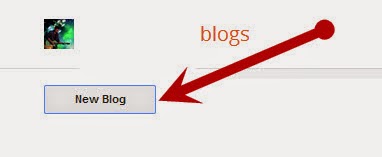
Click “Create Your Blog Now


Step 6: 

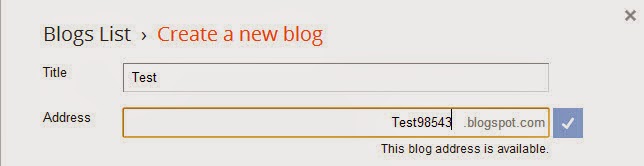
Select a “Blog title” and an available URL for your blog. You can check if the URL you are considering is available by clicking "Check Availability".

Step 7: 

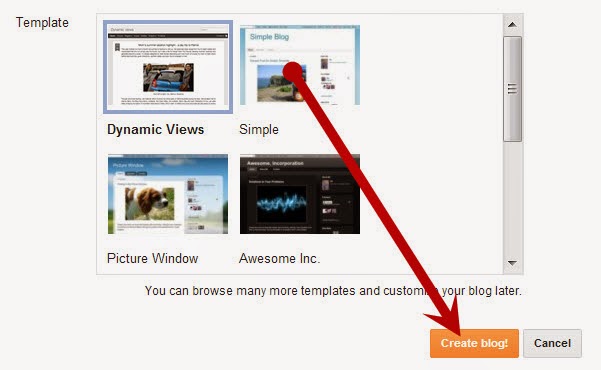
Choose a starter template, which will act as the basic design/layout of your blog.

Step 8:

Click “Start Blogging


Step 9: 

You can create new blog posts, edit posts, and edit pages from under the “Posting” tab.

Step 10: 

The title of your post goes in the text box next to “Title”.

Step 11: 

The body of your post will get entered into the “Compose” text editor, where you will also be able to access basic text editor functions such as font size, text color, the ability to insert links. You can also use the “Edit HTML” tab to insert your post in HTML format, if you prefer.
Start a Blog on Blogger Step 12.jpg


Step 12: 

You can now either select “Save Now” to save your post, “Preview” to preview your post before publishing to your blog, or “Publish Post” to publish your post directly to your newly created blog.
Start a Blog on Blogger Step 14.jpg

Step 13: 

If you wish to change the design of your blog from the starter Blogger template you selected when initially creating your blog, you can do so under the “Layout” and "template" tab. From within the “Layout Tab” you will be able to edit Page Elements, HTML, and change your template with Temple Designer.
Start a Blog on Blogger Step 15.jpg

Step 14: 

If you want to adjust other settings such as who is able to view, contribute to, or comment on your blog etc, click the “Settings” tab
You can adjust publishing, comments, archiving, permissions, and all other settings from within the sub-tabs located under the main “Settings” tab.
Start a Blog on Blogger Step 17.jpg

Step 15: 

You can add your friends as new authors that are able to write a new post and edit your blog by clicking the “Settings” tab> “Permissions” sub-tab, and selecting “Add Authors”.
Start a Blog on Blogger Step 18.jpg
Courtesy: wikihow.com

A Free Premium Seo Optimized Blogger Template 

Read More